How can we help you?

Haven't got the manual to hand, misplaced it or lost it?
Then download it here conveniently and easily as a PDF.

Download PDF

Scenario

watch a short video

step by step 

With the Scenario Element, you can map situations for your learner as an interactive experience - or design it as a quiz.

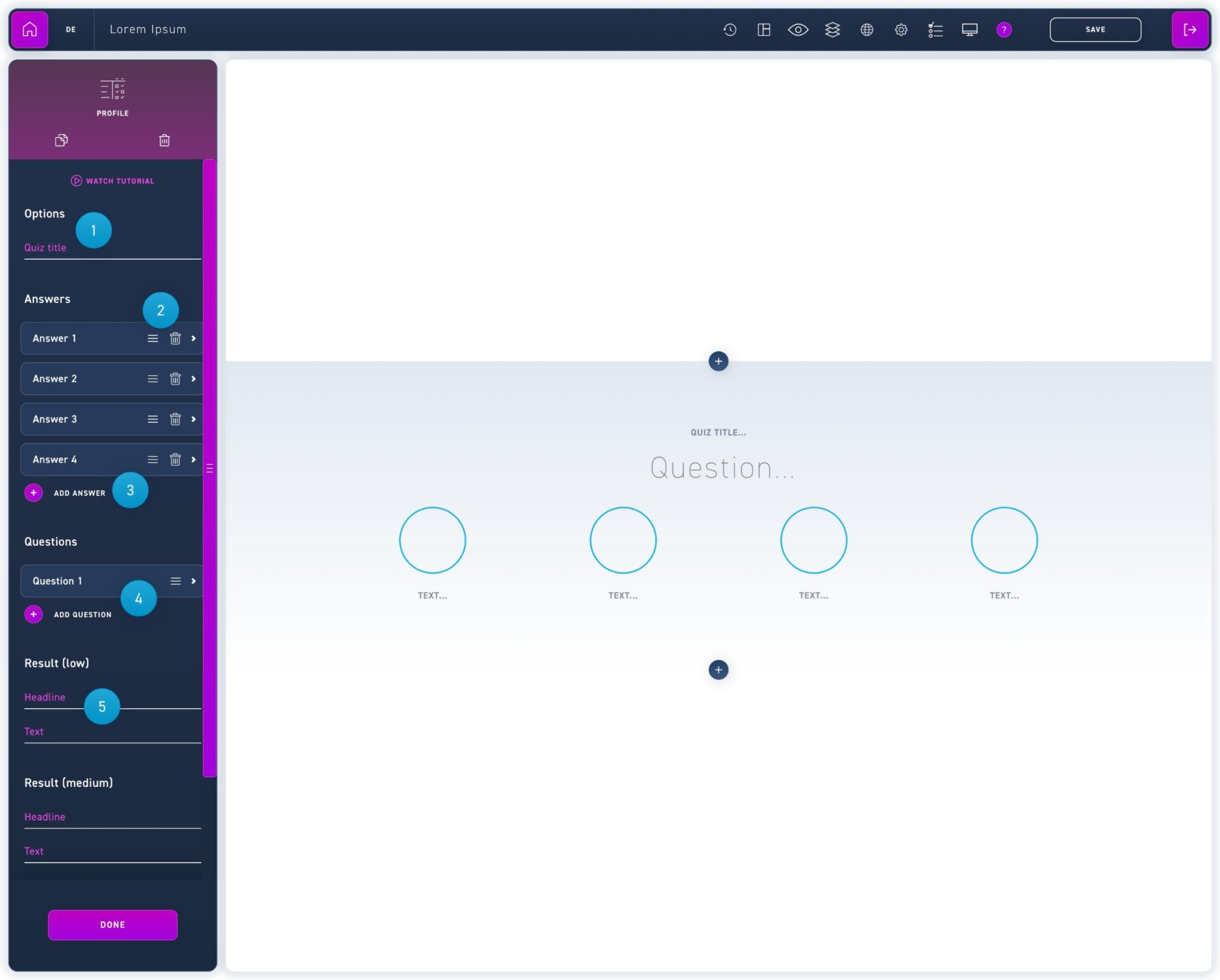
  1. Enter the desired quiz title and select whether the quiz is relevant to passing the WBT and whether it may be repeated.
  2. Choose a layout using the radio buttons. Your content does not need to be customized and will not be lost.
  3. You can optionally put an intro video in front of the scenario. Activate the option and select a video from the media library.
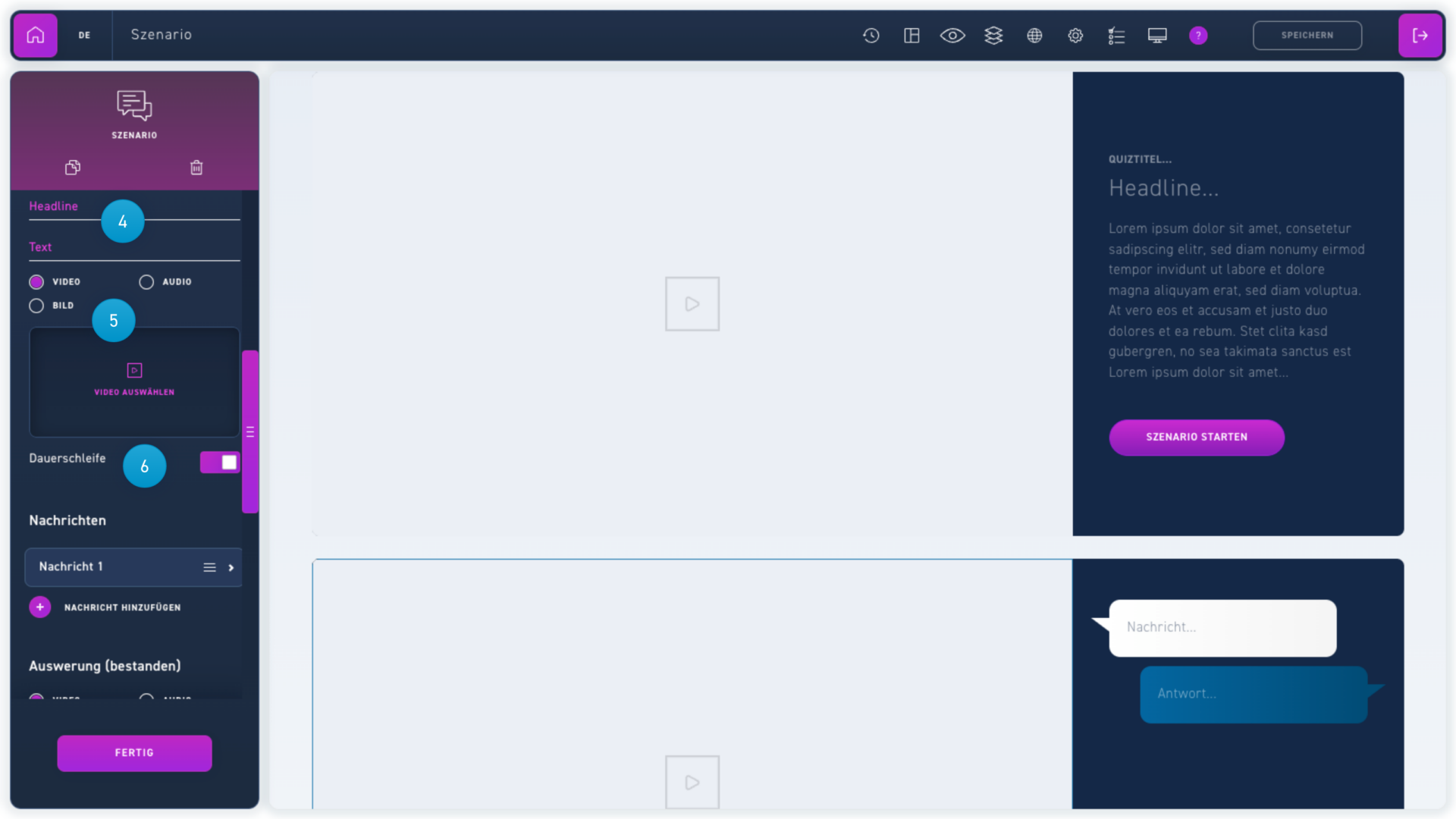
  1. Enter a title and body text as welcome text.
  2. Use the radio buttons to select whether a video, image or audio file should be displayed.


  3. Activate the Continuous Loop option if you want the video to start from the beginning automatically.
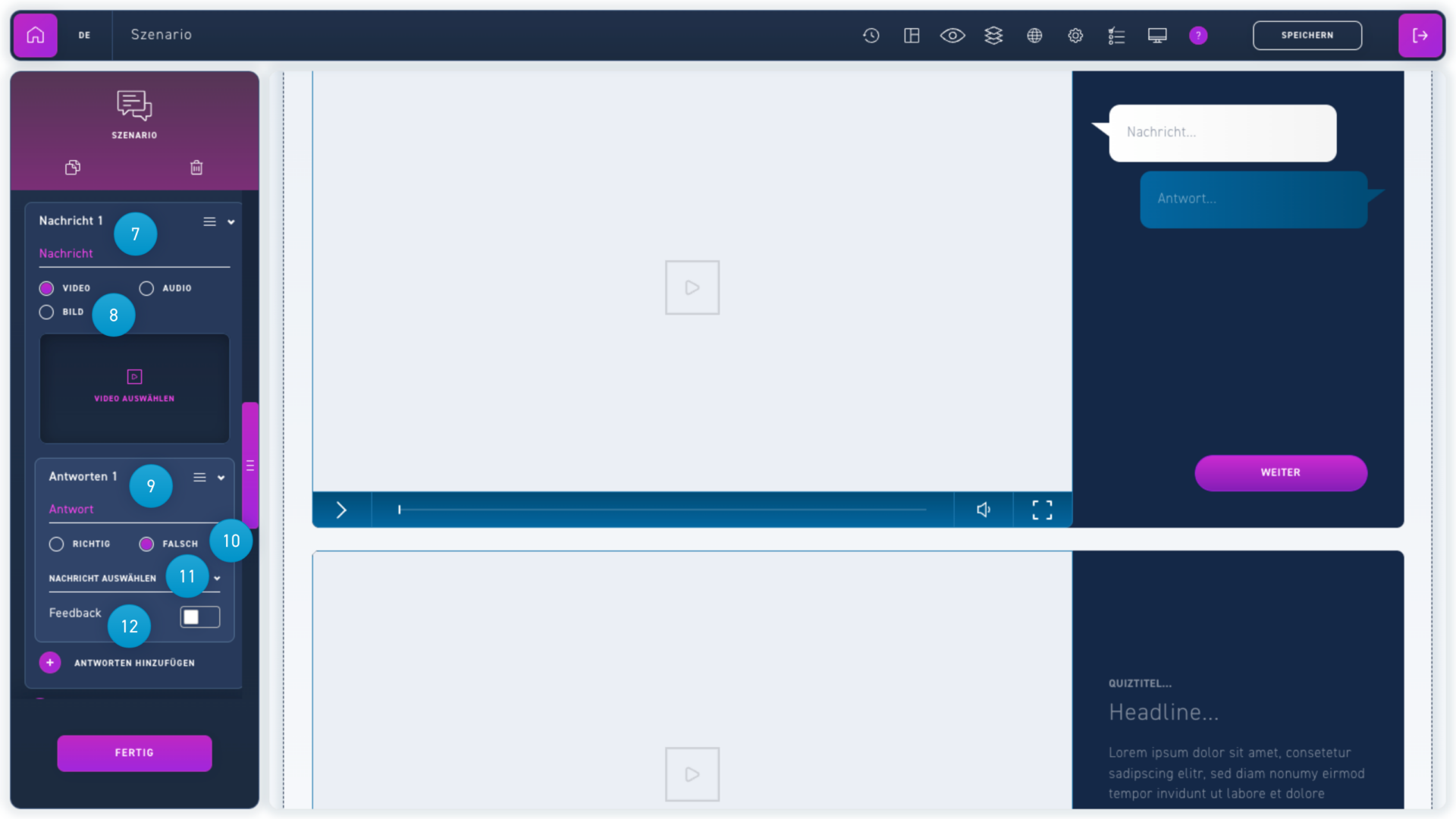
  1. Click a message and enter the content in the Message text box.
  2. Use the radio buttons to select whether to display a video, image or audio file.
  3. Click a reply and enter the content into the Reply text field.
  4. Use the radio buttons to select whether the answer is correct or incorrect.
  5. Click the dropdown menu and select what message should follow this answer.
  6. Activate the Feedback option if you want another message without an answer to appear before the next message.
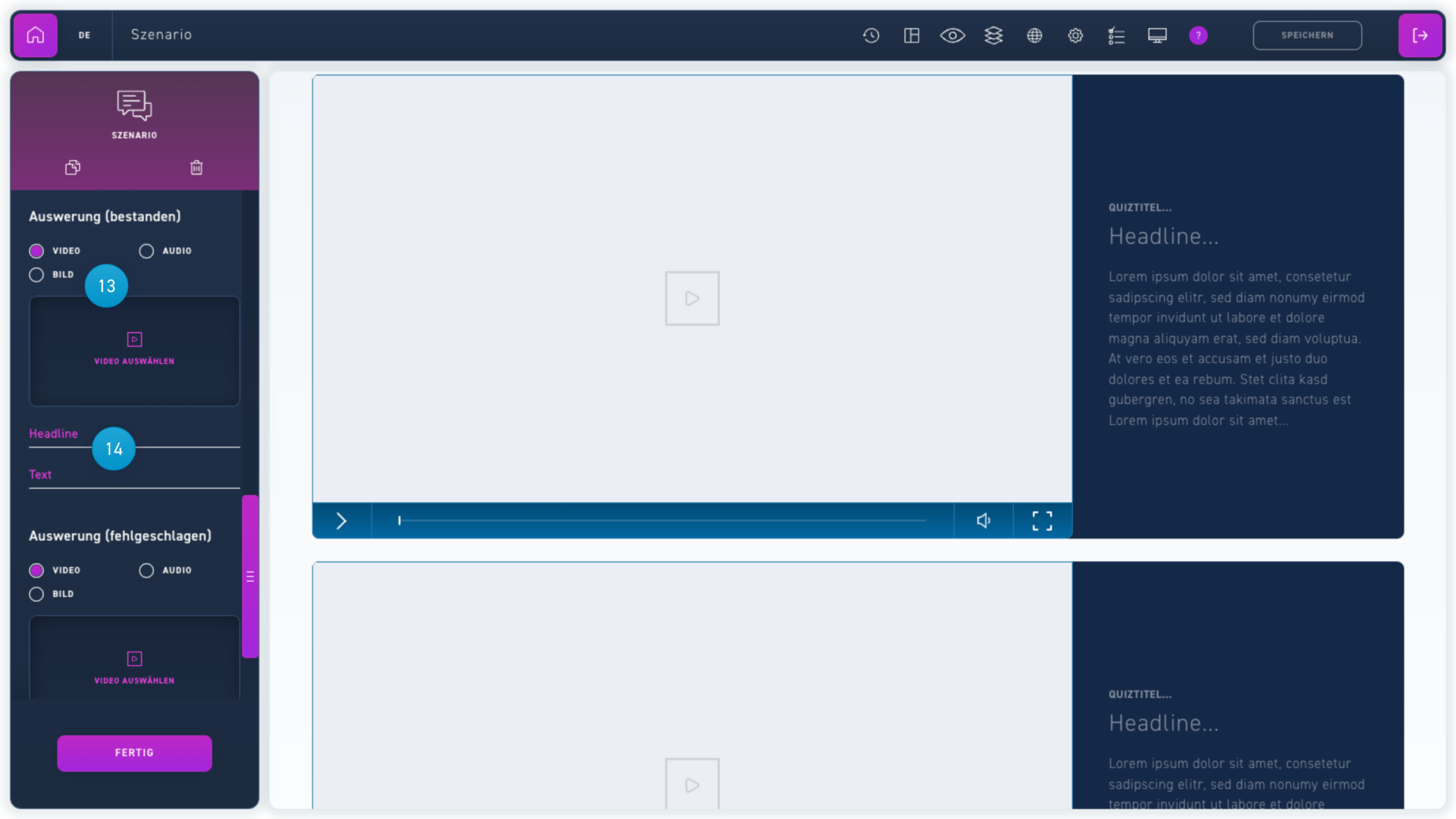
  1. Use the radio buttons to select whether the evaluation should be displayed with a video, image or audio file.
  2. Enter a headline and body text in the Headline and Body text fields.