How can we help you?

Haven't got the manual to hand, misplaced it or lost it?
Then download it here conveniently and easily as a PDF.

Download PDF

Media Library

Watch a short video

step by step

The media library contains all the media you have uploaded. This includes images, videos, audio files, SVGs, PDFs, and archive files like ZIP and RAR.


Images can be uploaded as JPG or PNG files and should not exceed the dimensions of 1920x1080px at 72dpi.


Videos can be uploaded as MP4 files with the H264 codec and should not exceed a file size of 150MB.
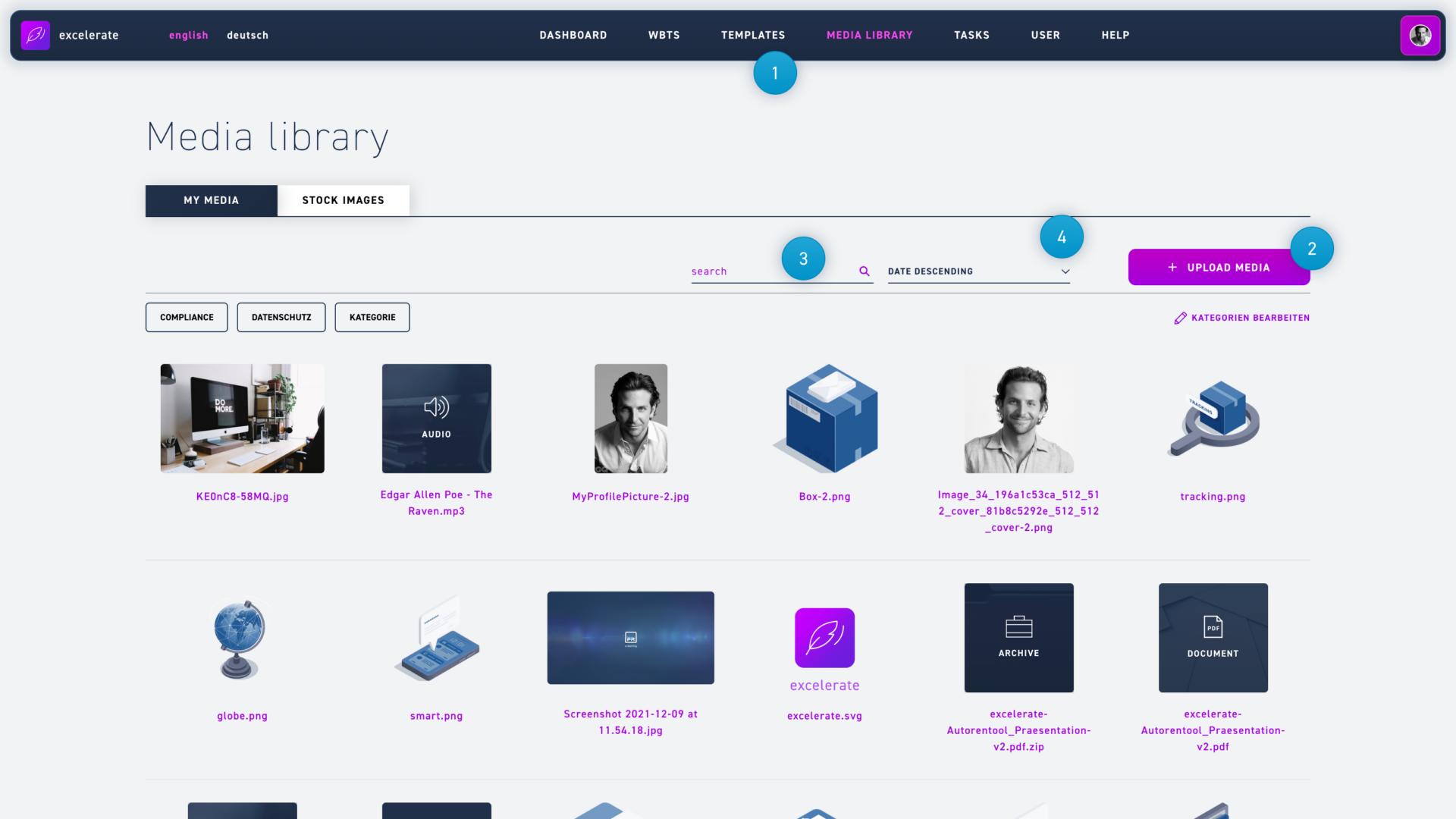
  1. Click on the menu item media library.
  2. With the upload media button you can upload one or more files to the media library. After clicking the button you have the choice between single and batch upload. If you want to upload more than one file, you can use the batch upload. Here you can drag multiple files into the marked field. Click the upload button to complete the process.
  3. The search function allows you to search your media by file name.
  4. The dropdown menu gives you the possibility to sort all media according to certain criteria.
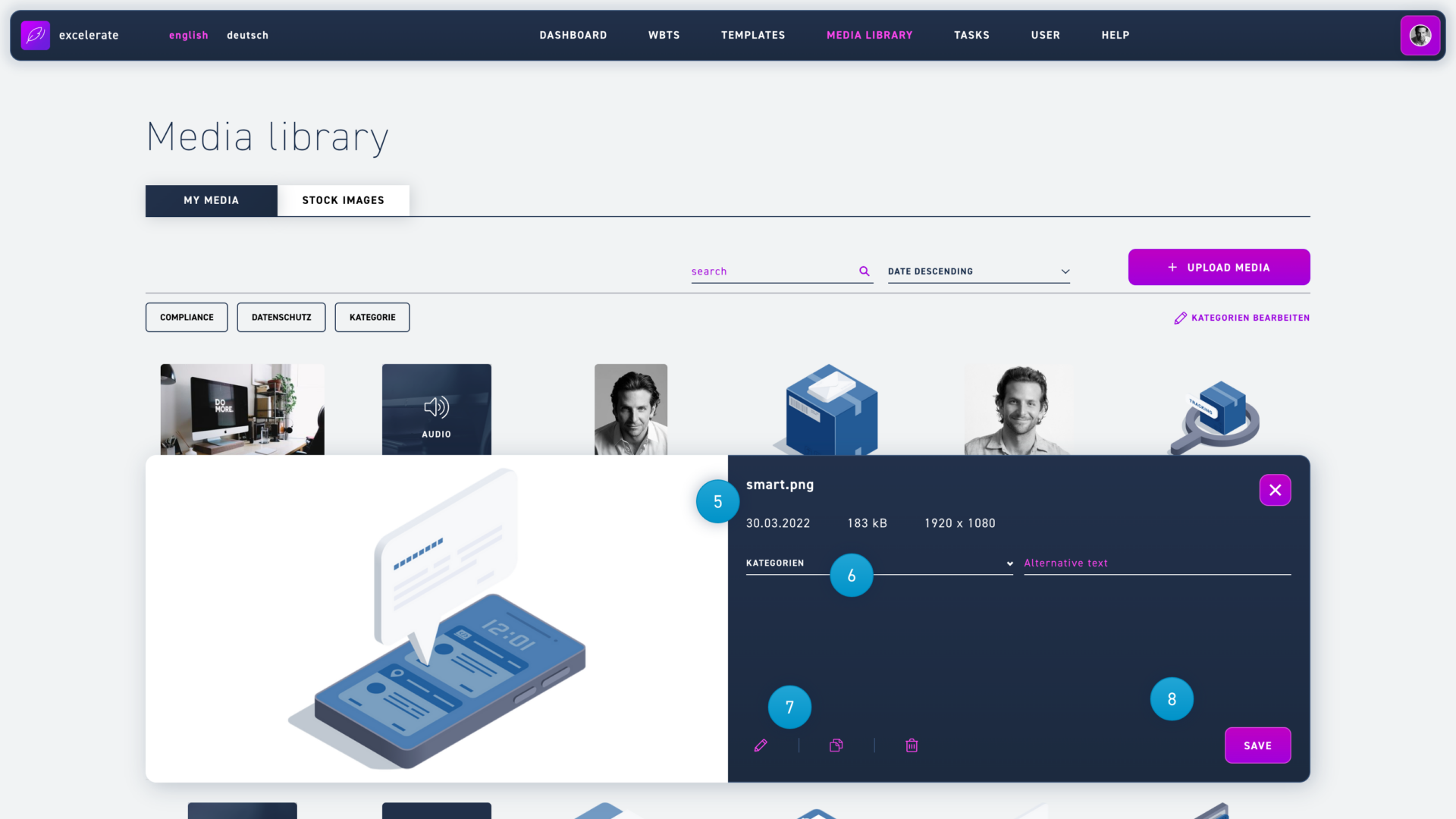
  1. If you select a file, you will see the file name and metadata (upload date, file size, dimensions etc.) in the lower window.
  2. You can enter a description of the image in the alternative text line. This allows screen readers to read out the image content.
  3. With the pencil icon you open the image editor, the stack of paper icon duplicates the file and with the recycle bin icon you delete the image.
  4. Click the save button to confirm changes to the image.
  1. Use the functions in the top bar to navigate around the image.
  2. The editing options are located in the bottom bar. The image can be cropped, flipped, rotated and much more.
  3. If you want to remove all editing, simply click the restore original button.
  4. To finish editing the image, click on the save button.
  5. If you want to cancel the editing process, exit by clicking the x symbol in the upper right corner.
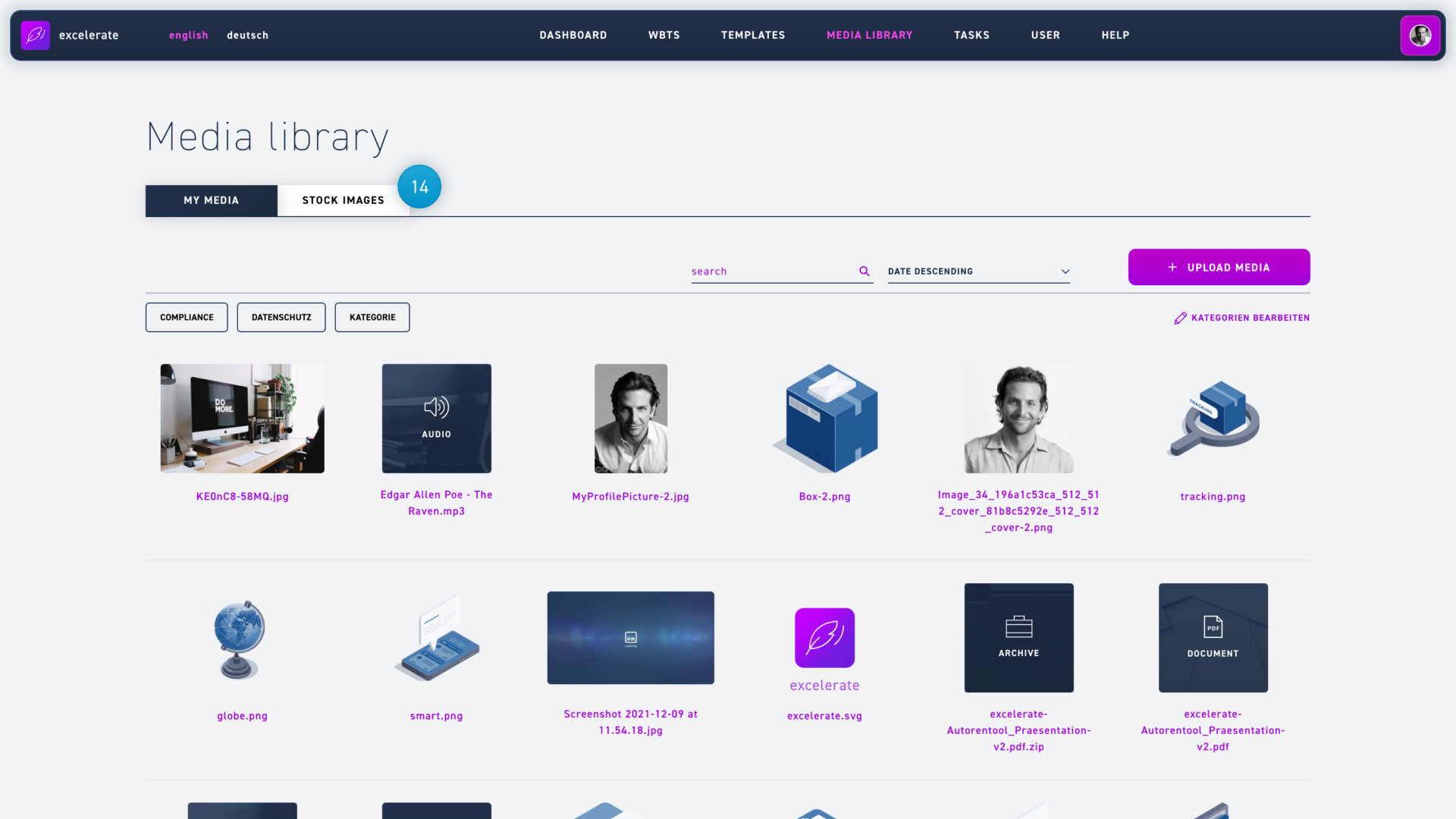
  1. Click the Stock Images Tab to search the Unsplash image library.
  1. Enter your search term in the text field to search for images.
  1. Hover the mouse over a desired image and click the save in my library button to save the image.