User management is only visible to administrators. Here you can add and remove different user types and divide them into groups (so-called teams).
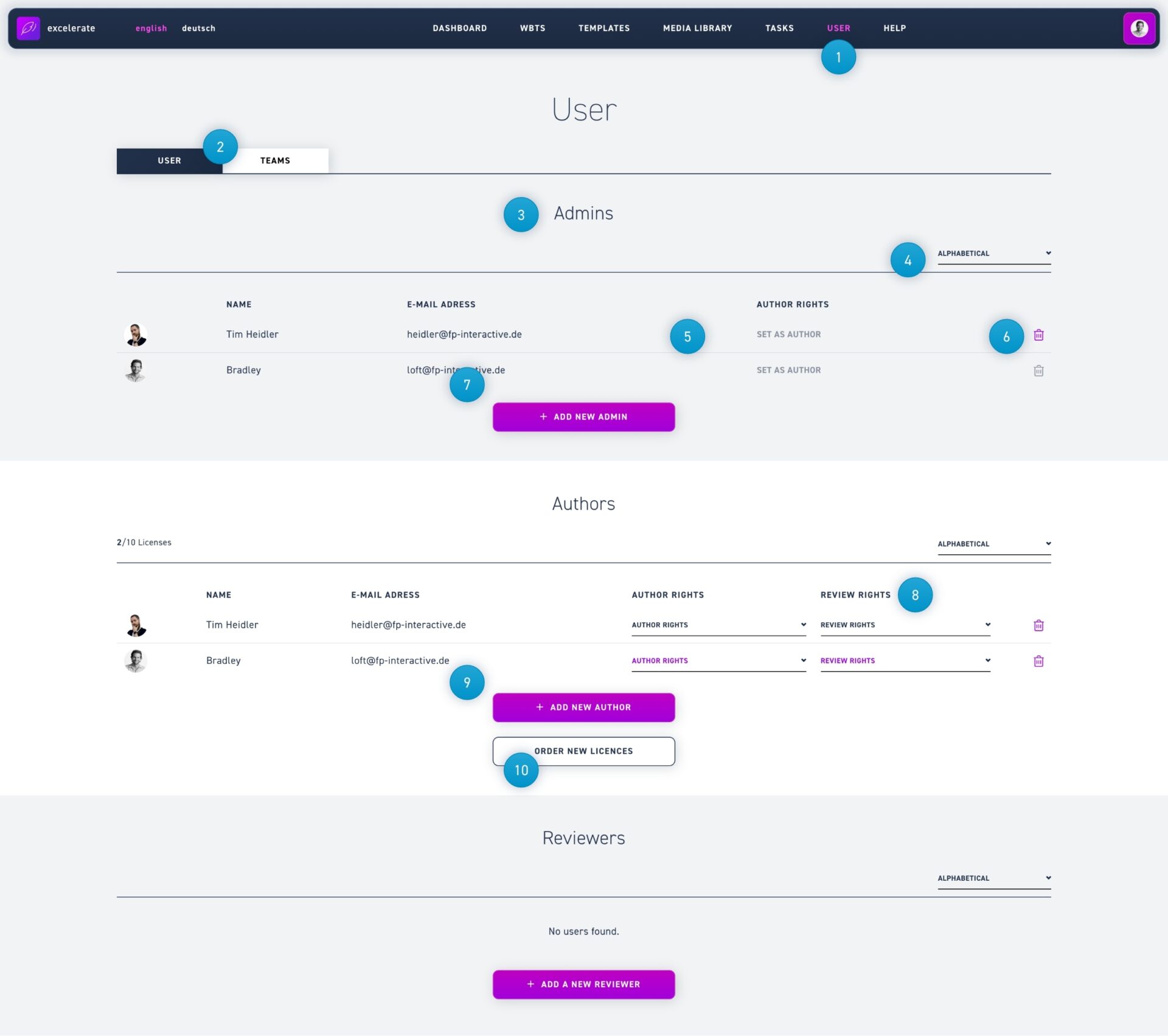
Click on the user menu item.
Use the user & teams buttons to toggle between the different views.
Admins can manage users, view and comment (not edit) WBTs. There is no limit to how many administrators can be created.
The list of users can be sorted using the drop-down menu.
Under author rights, administrators can be declared as authors or authors can be restricted in their editing rights to groups.
To delete a user, simply click on the trash can icon.
To set up a new administrator, click on the add administrator button and enter the desired email addresses. Separate email addresses with a line break to invite multiple users at once.
If authors are to act as reviewers in certain groups, they can be assigned to them using the review rights button.
You can use the order licenses button to contact us to obtain an offer.
Reviewers can comment on WBTs. When you are assigned to a group, you will only see WBTs unlocked for that specific group. There is no limit to how many reviewers can be created.
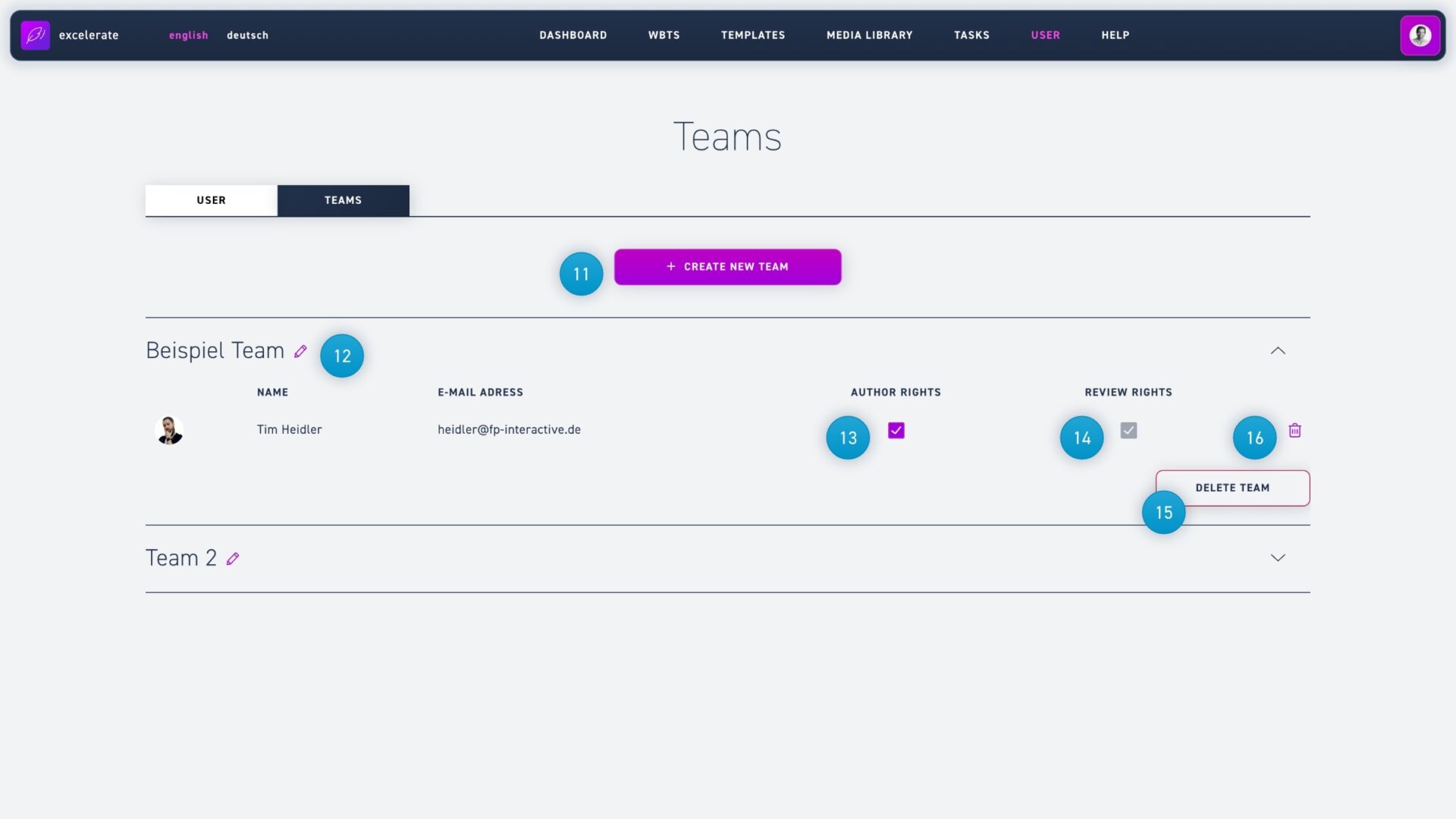
To create a group, click on the create a new team button and enter the name in the text field.
To edit a team's name afterwards, click on the pencil icon next to the name.
Under author rights you can determine whether an author in your group can edit WBTs or not.
Authors can be marked as reviewers under review rights.